
How to use Strava Heatmaps in Cartograph Maps
Cartograph Maps 4.1.5 allows you to execute JavaScript code when an online map is initialized and when map tiles are requested from the map server. This feature can be used for getting the Strava Heatmap overlay raster tiles. The following describes how to setup the Strava Heatmap in Cartograph Maps.
1.) Go to the Online maps page on our website and click on “Install” next to the “Strava Heatmap” entry. This will open Cartograph Maps and install the “Strava Heatmap (script)” online map in the Map manager.
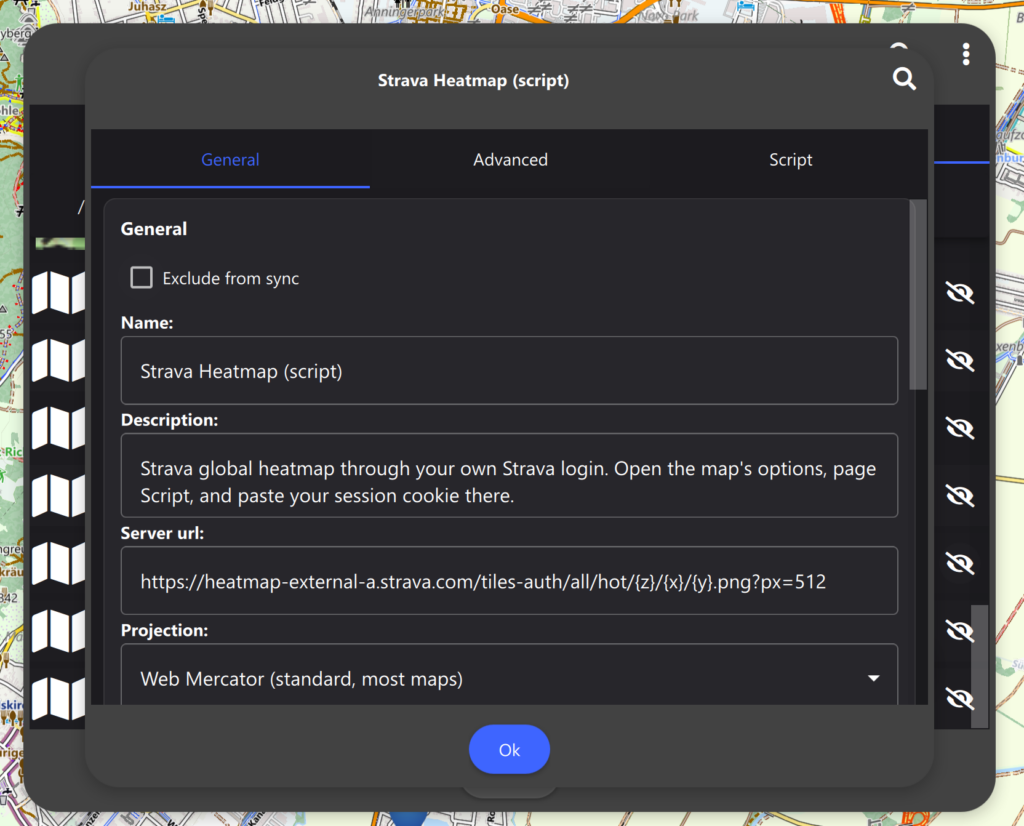
2.) In Cartograph Maps, go to the Map manager – Online maps, and click on the “Strava Heatmap (script)” entry. Select “Properties” from the context menu. You will see this dialog:
3.) Click on the “Script” tab:
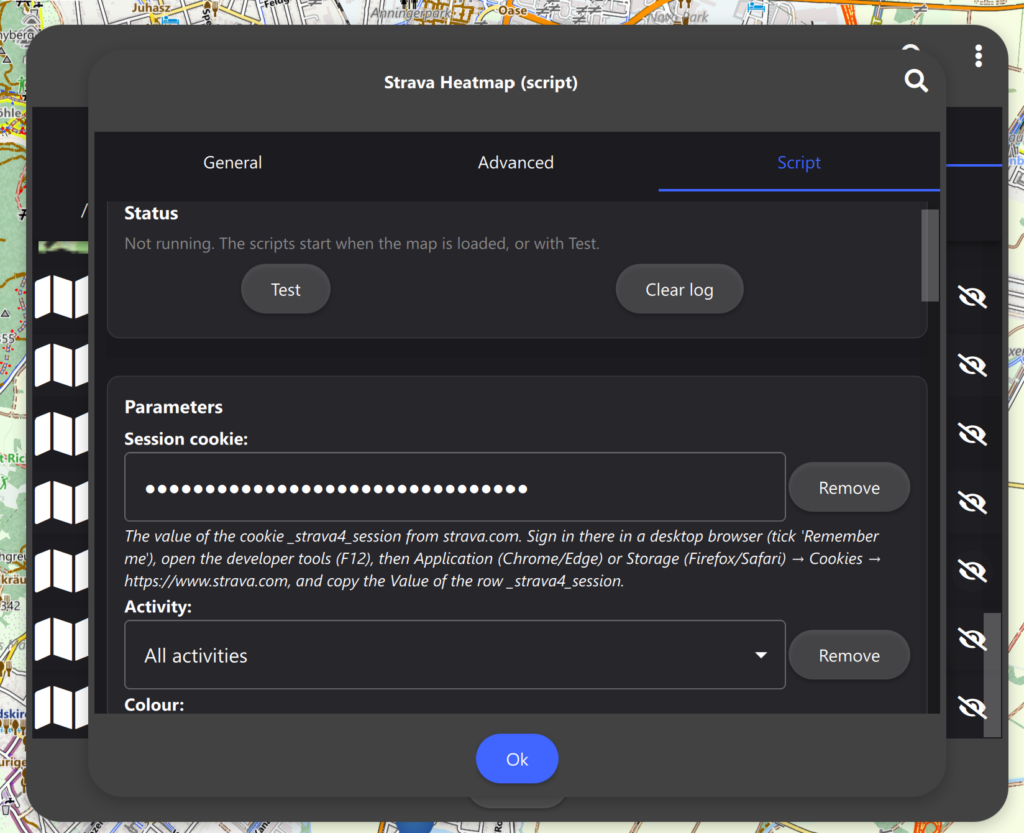
4.) Next we have to get the Strava session cookie from the Strava website. Therefore, login with your Strava account on the Strava.com website using Mozilla Firefox or Google Chrome web browser.
5.) In Firefox or Chrome we open the “Developer console” while we are on the Strava website:
- Windows: press Shift+Ctrl+I or F12
- macOS: press Cmd+Option+I or F12
6.a.) In Firefox we find the cookie under “Storage” – “Cookies” – “_strava4_session“:

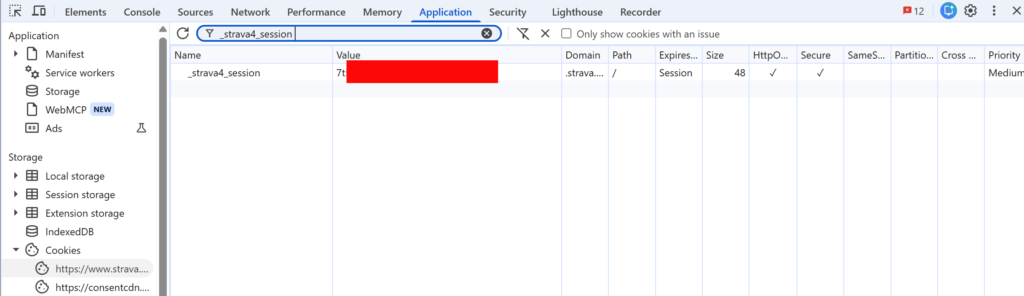
6.b.) In Chrome we find the cookie under “Application” and then filter by “_strava4_session“:
7.) We copy the “_strava4_session” value into the “Session cookie” field in Cartograph Maps (1) and then press the “Test” (2) button. After pressing the “Test” button a green text “Ready” should appear. If the text is red then the session cookie is not valid:
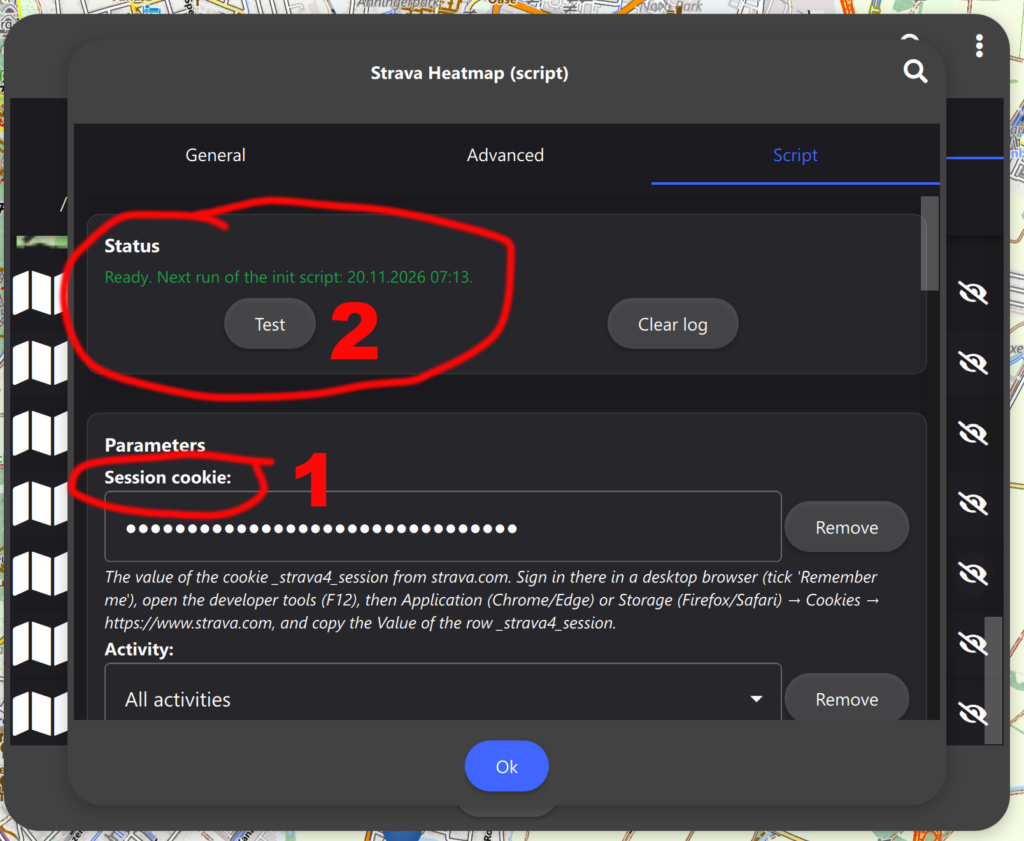
8.) The Strava heatmap is now ready to be used in Cartograph Maps.